Cast a Magnet Controls
PC and mobile inputs for cast, reel, sell, upgrades, and display.
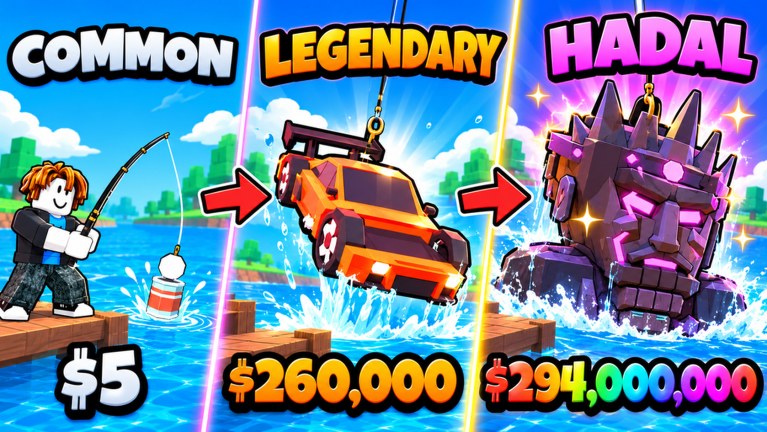
This Controls guide covers how to play Cast a Magnet on PC and mobile: casting the magnet, finishing the reel minigame, selling loot, buying upgrades, managing inventory, and placing items on your base display. Pair it with Item Values so you know what to do after a successful catch, and return to the Players Hub for the values overview.
Cast a Magnet is a Roblox magnet-fishing incremental by Sweg Magnets. Good inputs matter—missed reels drop heavy fish-shaped paydays back into the pond.
Core loop mapped to inputs
- Aim and cast toward productive water.
- Complete the reel / pull minigame when prompted.
- Review the catch in inventory.
- Sell junk or send trophies to base display.
- Open upgrade / magnet / merchant UI to spend.
- Repeat, adding potions, bounties, and rebirth when unlocked.
If any step feels unclear in-game, finish the tutorial once on a fresh account, then use this page as a reference. Getting Started covers early goals beyond raw buttons.
PC controls
Exact keybinds can vary with Roblox shift-lock and device settings, but the workflow is consistent:
Casting
- Move your character to a shoreline or cast platform.
- Use the on-screen cast control / mouse interaction to set direction and power.
- Release to throw the magnet. Watch rope angle—early rope upgrades (see Magnets Tier List) forgive bad aim less than you hope.
Reel minigame
- When a bite / catch challenge starts, follow the on-screen prompt timing.
- Keep cursor or button pressure aligned with the success zone.
- Heavier items punish late inputs; this is why power and practice beat rushing.
Sell and inventory (PC)
- Open your inventory bag from the HUD.
- Select commons and low-value junk.
- Confirm sell at the sell NPC / sell button flow.
- Leave favorites, mutated pieces, and display candidates untouched.
Upgrades and merchant (PC)
- Open the upgrade shop for power, rope, luck, and magnet body purchases.
- Visit the merchant when available for rotating deals.
- Avoid impulse buys—cross-check magnets priorities.
Base display (PC)
- Carry a trophy to your base display area.
- Use the display interaction to place / swap pieces.
- Prioritize high rarity, high weight, and mutations per Items & Rarity.
Mobile controls
Touch UI compresses the same systems:
Casting on mobile
- Walk to the cast zone.
- Use the thumb cast gesture / on-screen cast button to aim.
- Shorter sessions benefit from standing in a proven spot rather than constant repositioning.
Reel minigame on mobile
- Tap/hold according to the prompt; do not background Roblox mid-challenge.
- If you drop frames, lower graphics so timing stays readable.
- Consider shorter AFK gaps—mobile executors and apps sleep aggressively if you later experiment with scripts (How to Execute).
Sell, upgrades, display on mobile
- HUD buttons open inventory, sell, and shop panels.
- Double-check selections before confirming sell; fat-finger mistakes liquidate trophies.
- Display placements may take an extra tap to rotate or confirm—go slow with S-tier keeps.
UI checklist every session
| UI | What to verify | | — — | — — | | Cast HUD | Facing open water, not a wall | | Minigame prompt | Visible success zone before input | | Inventory | Space remaining; favorites marked | | Sell | Only junk selected | | Upgrades | Cash reserved for S/A priorities | | Merchant | Deal beats grinding the same upgrade | | Display | Best weight/rarity/mutation showing | | Potions | Luck potion active during weather windows | | Bounties / index | Objectives tracked if you chase them |
Common control mistakes
- Casting before the last sell — ?full inventory can stall the loop.
- Mashing the reel — ?timing zones matter more than spam.
- Selling from the wrong tab — ?confirm rarity icons first.
- Ignoring display until late — ?empty bases waste index and flex opportunities.
- Opening shop mid-minigame — ?finish the catch, then manage UI.
- Running two overlapping autos — ?if you use Alexandria or Plak, do not also fight the GUI manually in conflicting ways.
Practice drills (five minutes)
- Ten intentional casts focusing only on aim consistency.
- Ten minigames where you watch the zone first, then input.
- One full sell trip sorting commons vs keeps using Item Values.
- One display swap replacing your weakest shelf piece.
- One upgrade purchase that matches the magnets route—not a random merchant vanity.
Accessibility and comfort tips
- Increase GUI scale in Roblox settings if prompts are hard to see.
- Use headphones for audio cues if the game telegraphs bites.
- Take breaks; repetitive cast loops cause hand strain on mobile thumbs especially.
- On shared devices, log out of alts used for script tests before handing the phone over.
Related pages
Learn the buttons until they are boring. Boring inputs plus smart sells beat flashy mistakes every rebirth.
Frequently Asked Questions
Quick answers for Cast a Magnet players.
How do you cast in Cast a Magnet?
Stand at a cast area, aim with mouse or touch cast controls, release to throw, then complete the reel minigame when it appears.
Are mobile controls different from PC?
The loop is the same, but mobile uses touch buttons and is less precise on reel timing. Keep the app foregrounded during catches.
Where is the sell and upgrade UI?
Use the HUD inventory/sell flow to cash junk, then open the upgrade shop and merchant panels to spend on magnets, power, rope, and luck.
How do I put items on my base display?
Take a trophy to your base display interaction, place or swap it, and prioritize high rarity, weight, and mutations.